Get the WhatsApp Number Checker software, watch tutorials, and access documentation
Get the latest version of our professional WhatsApp number verification software
Complete package with all required files
After downloading, extract the ZIP file to a folder on your computer. Make sure to keep all files together in the same directory. You'll need to have Google Chrome installed for the software to work properly.
Follow these simple steps to begin verifying WhatsApp numbers
Download the software package and extract it to a folder on your computer. No traditional installation is needed.
Create a text file named "numbers-need-to-be-checked.txt" in the same folder with one number per line.
Double-click the WhatsAppChecker.exe file, enter your license key when prompted, and follow the instructions.
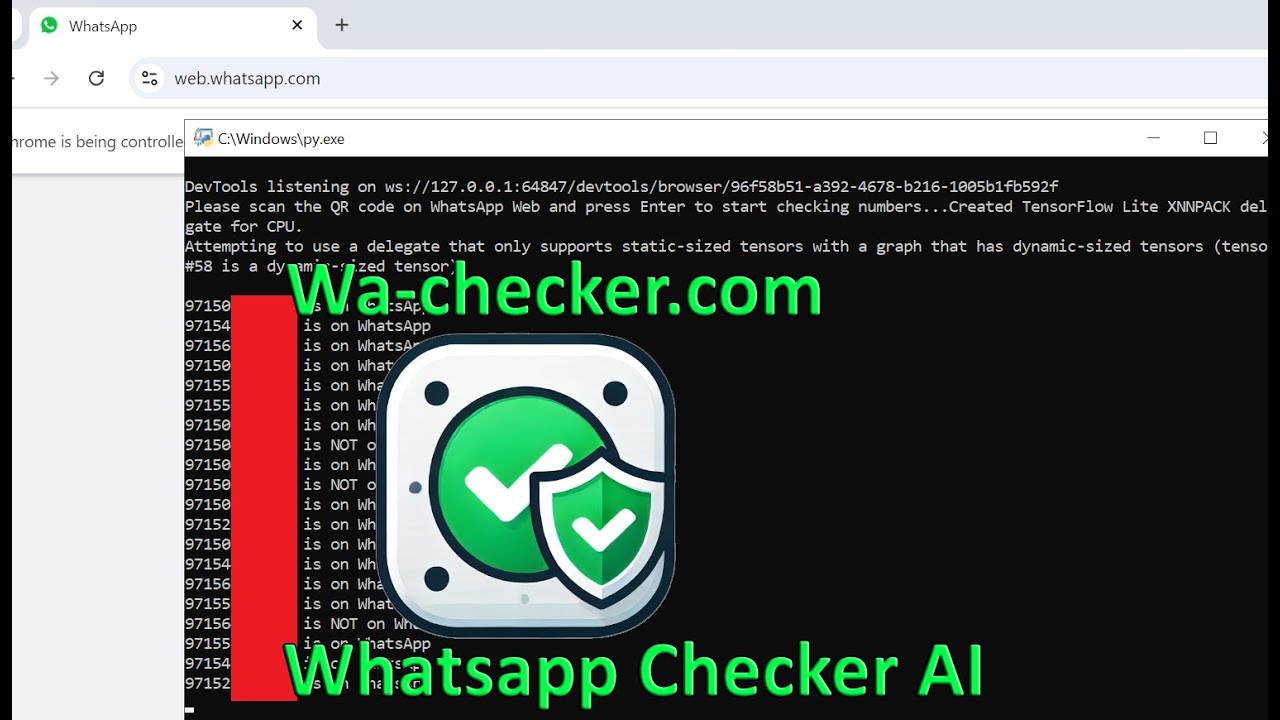
When prompted, scan the QR code using your mobile WhatsApp to establish a secure connection.
After scanning, press Enter to begin the verification process. The software will process each number.
Valid WhatsApp numbers will be saved to "valid-whatsapp-numbers.txt" in the same folder.
Solutions to common issues you might encounter
Make sure you have the latest version of Google Chrome installed. Also ensure your antivirus isn't blocking the software - you may need to add an exception for the folder where you extracted the files.
Ensure your phone has an active internet connection. Try refreshing the QR code page in the browser window that opens. Make sure you're scanning with the same WhatsApp account you want to use for verification.
Check that your input file is named exactly "numbers-need-to-be-checked.txt" and is in the same folder as the software. Ensure each number is on its own line in international format (e.g., +971501234567).
Double-check that you've entered your license key exactly as provided. If you've recently purchased, wait a few minutes and try again as license propagation can take 2-3 minutes. If the problem persists, contact support.
For large lists (10,000+ numbers), consider running the software on a VPS for better performance. Also ensure you have a stable internet connection and at least 4GB of RAM available.
Download the WhatsApp Number Checker and clean your contact lists today